Introduction
Leo-Web is a lightweight, browser-based port of the Leo Editor, the iconic outliner and scriptable literate programming environment.
👉 Try it now: Open Leo-Web
- Work with Leo outlines without installing anything
- Script using JavaScript or TypeScript
- Access local files using the browser File System API
Leo is a fundamentally different way to organize code, notes, and ideas.
See Leo, the Literate Editor with Outline, at leo-editor.github.io/leo-editor or on github.
Web-Based Development
Leo-Web uses the browser's File System API.
Due to browser security constraints, access is limited to a user-approved workspace directory. For example:
- You can work inside project folders (e.g., C:/MyProject)
- You cannot access system-level directories or unrestricted root locations. Although access to subdirectories within user folders (e.g., Documents/MyProject) is permitted.
Browser Constraints
- No absolute file paths (relative paths only)
- No access to the original Leo's
~/.leosettings folder - No execution of OS shell commands
- Some keybindings are reserved by the browser (
Ctrl+TAB,Ctrl+NandCtrl+T)
Features
- UI controls: The Leo Outline, body pane, along with a tabbed Log Window containing all other panels.
- Keybindings that match those of the Leo editor, including arrow keys behavior for outline keyboard navigation.
- Derived files change detection. See External Files below for more details
- Scriptable in Javascript and Typescript. All commands and scripts have easy access to outline structure via a simple Javascript API
- Collapsible top menu
Shift+F11with tabs for opened files, toolbars for common commands and '@buttons' for creating your own commands - Find panel that reacts to Leo's typical keybindings like
Ctrl+F,F2andF3when focus is in the outline or body pane - Nav and Tag panel search controls are integrated in the Find panel
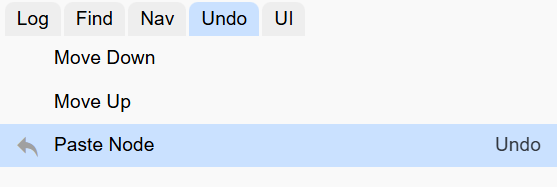
- Undo History panel, showing all actions and allowing going back, or forward, to any undo states.
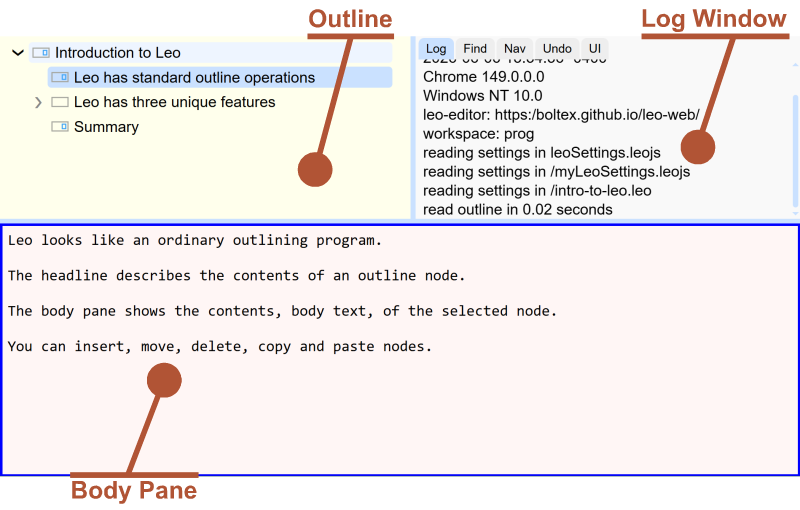
Leo Commands
Commands are accessible through a variety of interfaces — toolbar buttons, dedicated menus, and intuitive keybindings. Those commands are also discoverable via the Command Palette (Also called minibuffer) using Alt+X or Ctrl+Shift+P.
An Outline Editor
Essential Outline Commands and Keyboard Shortcuts
These can also be found anytime in Help → Welcome Screen.
| Outline Commands | |
|---|---|
| Insert Node | Ctrl + I or Shift + Insert |
| Insert Child | Ctrl + Insert |
| Edit Headline | Ctrl + H |
| Mark / Unmark | Ctrl + M |
| Copy Node | Ctrl + Shift + C |
| Cut Node | Ctrl + Shift + X |
| Paste Node | Ctrl + Shift + V |
| Delete Node | Ctrl + Shift + Backspace or Delete |
| Clone Node | Ctrl + Backtick |
| Promote / Demote | Ctrl + { and Ctrl + } |
| Moving Nodes | |
|---|---|
| Move Outline Up | Ctrl + U or Shift [+ Alt] + Up |
| Move Outline Down | Ctrl + D or Shift [+ Alt] + Down |
| Move Outline Left | Ctrl + L or Shift [+ Alt] + Left |
| Move Outline Right | Ctrl + R or Shift [+ Alt] + Right |
Move-Outline commands need the Alt key modifier only when focus is on body pane.
| Changing Focus | |
|---|---|
| Focus on Outline | Alt + T |
| Focus on Body (from outline) | Tab or Enter |
External Files
Use either of the Save Leo Document, Write File Nodes or Write Dirty Files commands to derive external files for any type of @file nodes.
| @<file> Kind | Sentinels | @others | .leo Data | Write Only |
|---|---|---|---|---|
| @asis | ❌ | ❌ | ✔️ | ✔️ |
| @auto | ❌ | ✔️ | ❌ | ❌ |
| @clean | ❌ | ✔️ | ✔️ | ❌ |
| @edit | ❌ | ❌ | ❌ | ❌ |
| @file | ✔️ | ✔️ | ❌ | ❌ |
| @nosent | ❌ | ✔️ | ✔️ | ✔️ |
Leo will detect external file changes and update the outline to reflect those changes.
User Settings
myLeoSettings.leoormyLeoSettings.leojsmust be at the root of your chosen workspace- UI settings are available via the log pane tab
Navigating a Leo Document
Arrow keys, home/end, page up/down are used for basic navigation. But in order to find and goto specific nodes directly, use the methods described below:
Go Anywhere Command
The Ctrl+P keybinding allows you to switch to any node directly by typing (part of) its headline.
Find Panel
With the focus in Leo's outline or body pane, Hit Ctrl+F to open the Find tab of the find panel.
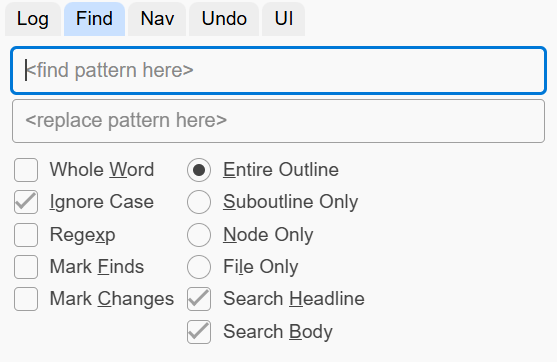
Enter your search pattern directly in the <find pattern here> field. Press Enter to find the first match starting from your current position.
Hitting F3 repeatedly will find the subsequent matches. (F2 for previous matches)
Using the Nav tab of the find panel, (Ctrl+Shift+F to accesss directly) you can type your search pattern in the Nav field instead to see all results appear below. This will show the headlines as you type.
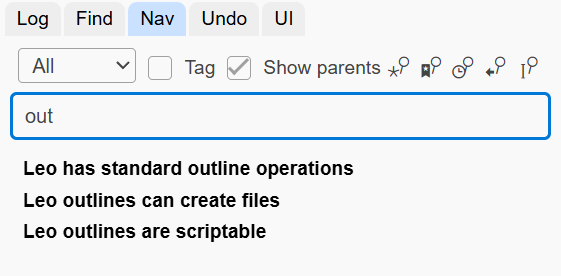
Press Enter to freeze the results and show results also found in body text of any node. This will add a snowflake icon ❄️ to the Nav field.
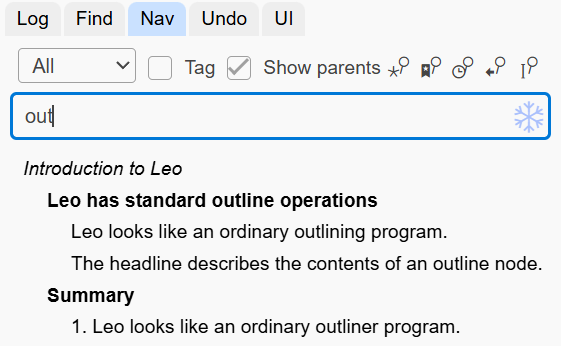
If you check the Tag option, the Nav field is then used to find nodes by their tag 🏷 ua (user attribute).
Undo Panel
You can right-click on an undo step to directly switch to that specific state!