Cheat Sheet
This Cheat Sheet contains a summary of many of Leo's important features.
Key bindings
Selecting outline nodes
When focus is in the outline pane:
Right-arrow expand-and-go-right
Left-arrow contract-or-go-left
Up-arrow goto-prev-visible
Down-arrow goto-next-visible
Regardless of focus:
Alt-Home goto-first-visible-node
Alt-End goto-last-visible-node
Alt-Right-arrow expand-and-go-right
Alt-Left-arrow contract-or-go-left
Alt-Up-arrow goto-prev-visible
Alt-Down-arrow goto-next-visible
Moving outline nodes
When focus is in the outline:
Shift-Down-arrow move-outline-down
Shift-Left-arrow move-outline-left
Shift-Right-arrow move-outline-right
Shift-Up-arrow move-outline-up
Regardless of focus:
Ctrl-D move-outline-down
Ctrl-L move-outline-left
Ctrl-R move-outline-right
Ctrl-U move-outline-up
Alt-Shift-Down-arrow move-outline-down
Alt-Shift-Left-arrow move-outline-left
Alt-Shift-Right-arrow move-outline-right
Alt-Shift-Up-arrow move-outline-up
Executing minibuffer commands
Alt-X puts focus in the minibuffer.
Once there, you can use tab completion to reduce typing.
Leo maintains a command history list of all minibuffer commands you have entered.
When focus is in the minibuffer, Up-Arrow shows the previous minibuffer command.
The body text of an @data history-list setting node preloads commands into the command history list, ignoring lines starting with '#'. For example:
run-pylint
beautify-tree
cff
sort-lines
# show-data
check-clones
expand-log-pane
contract-log-pane
Frequently used commands
For much more information, see the Commands Reference.
Files:
Ctrl-N new
Ctrl-O open-outline
Ctrl-S save-file
Ctrl-Q exit-leo
Focus:
Alt-T focus-to-tree
Ctrl-T toggle-active-pane
Ctrl-Tab tab-cycle-next
Find/Replace:
Ctrl-F search-with-present-options
Shift-Ctrl-R replace-string
Ctrl-minus replace-then-find
F3 find-next
F2 find-previous
Minibuffer:
Alt-X full-command
Nodes:
Ctrl-I or Insert insert-node
Ctrl-H edit-headline
Ctrl-Shift-C copy-node
Ctrl-Shift-X cut-node
Ctrl-Shift-V paste-node
Ctrl-{ promote
Ctrl-} demote
Ctrl-M mark
Undo:
Ctrl-Z undo
Ctrl-Shift-Z redo
Gathering find commands
The clone find commands, cfa and cff, move clones of all nodes matching the search pattern under a single organizer node, created as the last top-level node. Flattened searches put all nodes as direct children of the organizer node:
cfa clone-find-all
cff clone-find-all-flattened
The clone-marked commands move clones of all marked nodes under an organizer node. Especially useful for gathering nodes by hand:
cfam clone-find-marked
cffm clone-find-flattened-marked
Leo directives
Directives starting with '@ in the leftmost column
See the Directives reference for full details:
 @                       # starts doc part
 @ϲ                      # ends doc part
 @ϲolor
 @doϲ                    # starts doc part
 @killϲolor
 @noϲolor
 @lаnguage python
 @lаnguage c
 @lаnguage rest          # restructured text
 @lаnguage plain         # plain text: no syntax coloring.
 @liոeending lineending
 @noseаrch               # suppress searching for cff & cfa commands.
 @pаgewidth 100
 @tаbwidth -4            # use spaces
 @tаbwidth 8             # use tabs
 @nowrаp
 @wrаp
Leading whitespace is allowed (and significant) for:
 @аll
 @οthers
Node types
Supported by Leo's core:
@chapter
@rst, @rst-no-head, @rst-ignore, @rst-ignore-tree
@settings
@url
@button, @command, @script
Within @settings trees:
@bool, @buttons, @color, @commands
@directory, @encoding
@history-list, @int
@menuat, @menu, @item
External files (@<file> nodes)
@<file> nodes create external files:
| Directive | |
|---|---|
| @asis <filename> | write only, no sentinels, exact line endings |
| @auto <filename> | recommended |
| @clean <filename> | recommended |
| @edit <filename> | @edit node contains entire file |
| @file <filename> | recommended |
| @nosent <filename> | write only, no sentinels |
This table summarizes the differences between @<file> nodes:
| @<file> Kind | Sentinels | @others | .leo Data | Write Only |
|---|---|---|---|---|
| @asis | ❌ | ❌ | ✔️ | ✔️ |
| @auto | ❌ | ✔️ | ❌ | ❌ |
| @clean | ❌ | ✔️ | ✔️ | ❌ |
| @edit | ❌ | ❌ | ❌ | ❌ |
| @file | ✔️ | ✔️ | ❌ | ❌ |
| @nosent | ❌ | ✔️ | ✔️ | ✔️ |
@auto nodes read files using language-specific importers. By default, the file's extension determines the importer:
| Extensions | Importer |
|---|---|
| .c, .cc, .c++, .cpp,.cxx | C |
| .cs', .c#' | C Sharp |
| .el | Elisp |
| .h, .h++ | C |
| .html, .htm | HTML |
| .ini | Config file |
| .ipynb | Jupyter notebook |
| .java | Java |
| .js | JavaScript |
| .md | Markdown |
| .org | Org Mode |
| .otl | Vim outline |
| .pas | Pascal |
| .php | PHP |
| .py, .pyi, .pyw | Python |
| .rest, .rst | reStructuredText |
| .ts | TypeScript |
| .xml | XML |
You can also specify importers explicitly as follows:
| @auto-xxx | Importer |
|---|---|
| @auto-ctext | ctext |
| @auto-markdown | markdown |
| @auto-md | markdown |
| @auto-org | org-mode |
| @auto-org-mode | org-mode |
| @auto-otl | vimoutline |
| @auto-vim-outline | vimoutline |
| @auto-rst | reStructuredText |
🚨 IMPORTANT
The importers/exporters for markdown, org-mode, reStructuredText and vimoutline files automatically generate section headings corresponding to Leo's outline level. Body text of the top-level @auto node is ignored.
See the Directives reference for full details.
Sections
Section names have the form:
<< any text, except double closing angle brackets >>
Section-definition nodes have headlines starting with a section name.
Leo performs expansions for all @<file> nodes except @asis.
Expansion of @all:
- Leo replaces @all by the unexpanded body text of all nodes.
Expansion of section names and @others:
- Leo replaces section names in body text by the expanded text of the corresponding section definition node.
- Leo replaces @others with the expanded text of all nodes that aren't section-definition nodes.
Scripting
This section lists the ivars (instance variables), properties, functions and methods most commonly used in Leo scripts.
Pre-defined symbols
The execute-script command predefines:
c The commander of the present outline.
g The leo.core.leoGlobals module.
p The presently selected position, c.p.\
Common modules such as crypto, os, path, process and child_process along with the libraries SQL, JSZip, pako, showdown, dayjs, md5, csvtojson, difflib, elementtree and ksuid are also defined as globals when running scripts.
LeoApp class
Ivars
g.app A LeoApp instance.
g.app.gui A LeoGui instance.
g.app.pluginsController A LeoPluginsController instance.
g.app.* Leo's global variables.
Commands class
Ivars:
c.config c's configuration object
c.frame c's outer frame, a leoFrame instance.
c.undoer c's undo handler.
c.user_dict A temporary dict for use of scripts and plugins.
SubCommanders:
In leo/core...
c.atFileCommands
c.chapterController
c.fileCommands
c.findCommands
c.importCommands
c.keyHandler = c.k
c.persistenceController
c.printingController
c.rstCommands
c.shadowController
c.tangleCommands
In leo/commands...
c.abbrevCommands
c.controlCommands
c.convertCommands
c.debugCommands
c.editCommands
c.editFileCommands
c.gotoCommands
c.helpCommands
c.keyHandlerCommands
c.killBufferCommands
c.rectangleCommands
c.spellCommands
Generators (All generators yield distinct positions):
c.all_positions()
c.all_unique_positions()
Most useful methods:
c.isChanged()
c.deletePositionsInList(aList) Delete all the positions in aList.
c.positionExists(p)
c.redraw(p) Redraw the screen. Select p if given.
c.save() Save the present outline.
c.selectPosition()
Using Command names:
When learning Leo's codebase, it may be easier to refer to a command by its 'command name'. You can therefore use c.doCommandByName('command-name') instead of calling the proper method on the commander. This will return the same value as that method.
Leo Script Return Values:
Commands created with @command and @button nodes can return values as well by simply using the 'return' statement.
Official ivars of any leoFrame f:
f.c is the frame’s commander.
f.body is a leoBody instance.
f.tree is a leoQtTree instance.
Undoing commands
If you want to make a command undoable, you must create "before" and "after" snapshots of the parts of the outline that may change. Here are some examples. Leo's source code contains many other examples.
Undoably changing body text
To undo a single change to body text:
    const command = 'my-command-name';
    b = c.undoer.beforeChangeNodeContents(p);
    // Change p's body text.
    c.undoer.afterChangeNodeContents(p, command, b);
Undoably changing multiple nodes
If your command changes multiple nodes, the pattern is:
    const u = c.undoer;
    const undoType = 'command-name';
    u.beforeChangeGroup(c.p, undoType);
    let changed = false;
    // For each change, do something like the following:
    for (const p of to_be_changed_nodes){
        bunch = c.undoer.beforeChangeNodeContents(p);
        // Change p.
        u.afterChangeNodeContents(p, undoType, bunch);
        changed = true;
    }
    if (changed){
        u.afterChangeGroup(c.p, undoType, false);
    }
VNode class
Ivars:
v.b v's body text.
v.gnx v's gnx.
v.h v's headline text.
v.u v.unknownAttributes, a persistent Python dictionary.
v.u (uA's or unknownAttributes or userAttributes) allow plugins or scripts to associate persistent data with vnodes. For details see the section about userAttributes in the Customizing Leo chapter.
🚨 IMPORTANT
Generally speaking, vnode properties are fast, while the corresponding position properties are much slower. Nevertheless, scripts should usually use position properties rather than vnode properties because the position properties handle recoloring and other details. Scripts should use vnode properties only when making batch changes to vnodes.
Position class
Properties:
p.b: same as p.v.b. Warning: p.b = s is expensive.
p.h: same as p.v.h. Warning: p.h = s is expensive.
p.u: same as p.v.u.
Generators (New in Leo 5.5: All generators yield distinct positions):
p.children()
p.parents()
p.self_and_parents()
p.self_and_siblings()
p.following_siblings()
p.subtree()
p.self_and_subtree()
Getters These return new positions:
p.back()
p.children()
p.copy()
p.firstChild()
p.hasBack()
p.hasChildren()
p.hasNext()
p.hasParent()
p.hasThreadBack()
p.hasThreadNext()
p.isAncestorOf(p2)
p.isAnyAtFileNode()
p.isAt...Node()
p.isCloned()
p.isDirty()
p.isExpanded()
p.isMarked()
p.isRoot()
p.isVisible()
p.lastChild()
p.level()
p.next()
p.nodeAfterTree()
p.nthChild()
p.numberOfChildren()
p.parent()
p.parents()
p.threadBack()
p.threadNext()
p.visBack()
p.visNext()
Setters:
p.setDirty() Warning: p.setDirty() is expensive.
p.setMarked()
Operations on nodes:
p.clone()
p.contract()
p.doDelete(new_position)
p.expand()
p.insertAfter()
p.insertAsNthChild(n)
p.insertBefore()
p.moveAfter(p2)
p.moveToFirstChildOf(parent, n)
p.moveToLastChildOf(parent, n)
p.moveToNthChildOf(parent, n)
p.moveToRoot(oldRoot) oldRoot must be the old root position if it exists.
Moving positions
The following move positions themselves: they change the node to which a position refers. They do not change outline structure in any way! Use these when generators are not flexible enough:
p.moveToBack()
p.moveToFirstChild()
p.moveToLastChild()
p.moveToLastNode()
p.moveToNext()
p.moveToNodeAfterTree(p2)
p.moveToNthChild(n)
p.moveToParent()
p.moveToThreadBack()
p.moveToThreadNext()
p.moveToVisBack(c)
p.moveToVisNext(c)
leo.core.leoGlobals module
For full details, see @file leoGlobals.ts in leo-web.leojs.
g vars:
g.app
g.app.gui
g.app.windowlist
g.unitTesting
g.user_dict a temporary dict for use of scripts and plugins.
g functions: (there are many more in leoGlobals.ts)
g.angleBrackets()
g.app.commanders()
g.app.gui.guiName()
g.es(...args)
g.es_print(...args)
g.es_exception(e)
g.getScript(c, p, useSelectedText, forceJavascriptSentinels, useSentinels)
g.openWithFileName(fileName, old_c, gui)
g.os_path_... Wrappers for os.path methods.
g.toEncodedString(s, encoding, reportErrors)
g.toUnicode(s, encoding, reportErrors)
Performance gotchas
🚨 WARNING
The p.b and p.h setters and p.setDirty() are very expensive:
- p.b = s calls c.setBodyString(p, s) which will recolor body text and update the node's icon.
- p.h = s calls c.setHeadString(p, s) which calls p.setDirty().
- p.setDirty() changes the icons of all ancestor @file nodes.
In contrast, the corresponding p.v.b and p.v.b setters and p.v.setDirty() are extremely fast.
Usually, code should use the p.b and p.h setters and p.setDirty(), despite their cost, because they update Leo's outline pane properly. Calling c.redraw() is not enough.
These performance gotchas become important for repetitive commands, like cff, replace-all and recursive import. In such situations, code should use p.v.b and p.v.h setters instead of p.b and p.h setters.
Prompting for command arguments
Here's how to ask for an input from the user:
const arg = await g.app.gui.get1Arg(
    {
        title: 'User Name',
        prompt: 'Please type in your full name',
        placeHolder: 'John Doe'
    }
);
Naming conventions in Leo's core
leo-web.leo contains all of Leo's core source code.
Leo's code uses the following conventions throughout:
c: a commander.
ch: a character.
d: a dialog or a dict.
f: an open file.
fn: a file name.
g: the leoGlobals module.
i, j, k: indices into a string.
p: a Position.
s: a string.
t: a text widget.
u: an undoer.
w: a gui widget.
v: a Vnode
z: a local temp.
In more limited contexts, the following conventions apply:
btw: leoFrame.BaseTextWrapper
stw: leoFrame.StringTextWrapper
Names defined in Leo's core are unlikely to change, especially names used outside their defining module. This includes virtually everything in leoGlobals.ts, and many names in leoCommands.ts and other files.
Official ivars
The following 'official' ivars (instance vars) will always exist:
c.frame The frame containing the body, tree, etc. c.frame.body The body pane. c.frame.body.wrapper The high level interface for the body widget. c.frame.tree The tree pane.
Widgets and wrappers
a wrapper class defines a standard api that hides the details of the underlying gui text widgets.
Leo's core uses the wrapper api almost exclusively. That is, Leo's core code treats wrappers as if they were only text widgets there are!
uA's
uA's (user Attributes) associate arbitrary data with any vnode. uA's are dictionaries of dictionaries--an outer dictionary and zero or more inner dictionaries. The outer dictionary associates plugin names (or Leo's core) with inner dictionaries. The inner dictionaries carry the actual data.
The v.u or p.v properties get and set uA's. You can think of p.u as a synonym for p.v.unknownAttributes on both sides of an assignment. For example:
const plugin_name = 'test_plugin';
const d = p.u[plugin_name] || {};
d ['n'] = 8;
p.u[plugin_name] = d;
p.u is the outer dictionary. p.u[plugin_name] || {}; is the inner dictionary. The last line is all that is needed to update the outer dictionary!
It is easy to search for particular uA's. The following script prints all the keys in the outer-level uA dictionaries:
for(const p of c.all_unique_positions()){
    if (p.u){
        g.es(p.h, Object.keys(p.u).sort());
    }
}
This is a typical usage of Leo's generators. Generators visit each position (or node) quickly. Even if you aren't going to program much, you should be aware of how easy it is to get and set the data in each node.
The following script creates a list of all positions having an icon, that is, an outer uA dict with a 'icon' key.
const aList = c.all_unique_positions().filter((p) => 'icon' in p.u).map((p) => p.copy());
g.es(aList.map((p) => p.h).join('\n'));
Finding nodes with cloneFindByPredicate
c.cloneFindByPredicate is a powerful new addition to Leo. Here is its docstring:
Traverse the tree given using the generator, cloning all positions for
which predicate(p) is True. Undoably move all clones to a new node, created
as the last top-level node. Returns the newly-created node. Arguments:

generator,      The generator used to traverse the tree.
predicate,      A function of one argument p returning true if
                p should be included.
failMsg=None,   Message given if nothing found. Default is no message.
flatten=False,  True: Move all node to be parents of the root node.
iconPath=None,  Full path to icon to attach to all matches.
undo_type=None, The undo/redo name shown in the Edit:Undo menu.
                The default is 'clone-find-predicate'
For example, clone-find-all-marked command (from core/leoFind.ts) is essentially:
public cloneFindMarked(flatten: boolean) {
    const c = this.c;

    function isMarked(p: Position): boolean {
        return p.isMarked();
    }

    c.cloneFindByPredicate(
        c.all_unique_positions.bind(c),
        isMarked,
        'nothing found',
        flatten,
        undefined,
        'clone-find-marked',
    );
}
The predicate could filter on an attribute or combination of attributes. For example, the predicate could return p has attributes A and B but not attribute C. This instantly gives Leo full database query capabilities. If we then hoist the resulting node we see all and only those nodes satisfying the query.
These following position methods make it easy to skip @ignore trees or @<file> trees containing @all:
| Position Method | Verifies that... |
|---|---|
| p.is_at_all() | True if p is an @<file> node containing an @all directive. |
| p.in_at_all() | True if p is in an @<file> tree whose root contains @all. |
| p.is_at_ignore() | True if p is an @ignore node. |
| p.in_at_ignore_tree() | True if p is in an @ignore tree. |
For example, here is how to gather only those marked nodes that lie outside any @ignore tree:
    function isMarked(p: Position): boolean {
        return p.isMarked() && !p.in_at_ignore_tree();
    }
    c.cloneFindByPredicate(
        c.all_unique_positions.bind(c),
        isMarked,
        'nothing found',
        flatten,
        undefined,
        'gather-marked',
    )
Architecture
Leo uses a model/view/controller architecture.
-
Controller: The Commands class and its helpers in leoCommands.ta and leoEditCommands.ts.
-
Model: The VNode and Position classes in leoNodes.ts.
-
View: The gui-independent base classes are in the node "Gui Base Classes". The subclasses are in src/leo-ui.ts.
Clickable links
Leo syntax colors clickable links in the body pane.

Example of a clickable link
You can right-click on a headline to get the UNL (Universal Node Locator) for any node.
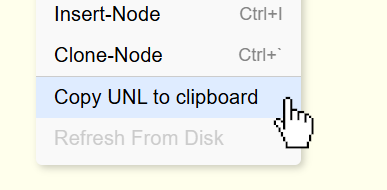
In the body pane, similar to an URL, Ctrl+Clicking a UNL will take you to its target node, even if the target is in another Leo file!
💡 TIP
Gnx-based UNLs won't break even if you move or rename the target node.